

Knowledge › Tools
Tools
How to sign a PDF on your phone: iPhone and Android, step by step
The contract has arrived by email and there's no computer around? With your phone's built-in tools or Adobe Acrobat Reader you can sign it in a few minutes. Step by step for iPhone and Android, with tips for a neat finger-drawn signature.
A tenancy agreement, a school consent form, a work declaration: more and more of them arrive as PDFs, and often just when your phone is all you have with you. On most phones you can sign a PDF without printing or scanning: on iPhone with the built-in Files app, and on iPhone and Android with Adobe Acrobat Reader. This guide walks you through both step by step, shows you how to make a finger-drawn signature look good, and covers what to watch for when saving, sending and storing it. What a pasted-in signature is and isn't enough for is covered in signing PDFs and e-documents; this piece is about the practical steps.
Before you start: what are you being asked for?
A signature you draw on a PDF on your phone is an image or drawing placed on top of the document. In many everyday situations that's enough, but not always. Before you sign, check exactly what the sender is asking for.
- A PDF is attached and they ask you to sign and return it. This guide is for you: sign it on your phone and send it back.
- You've received a link to a signing service. Then you sign at that link, in that service. Don't download it and sign elsewhere, because the sender expects the service's record.
- They ask for a certified or qualified e-signature. That's a separate technical process, and a drawn signature can't replace it. Ask how you can provide one.
- They want an original signed in ink. Then your phone won't help: you'll need to print, sign and post or hand it in.
If you're unsure, one quick question to the sender can save you a second round. What counts as enough varies by country and institution; it's always decided by whoever is asking for the document.
Get the file ready
The most common snag happens before you sign, not during: the PDF is open in an email or chat app preview, where it can't be edited. So the first step is always to save the file to your phone.
- 1Save the PDF. On iPhone, use the share button to save it to the Files app; on Android, download it, usually into your Downloads folder.
- 2Make a copy. The signature may be written into the original file. With an untouched copy, you can always start again.
- 3Read it through. It's easy to scroll past a document on a phone. Slow down, zoom in and read it before you sign.
- 4Note how many places need signing. Many contracts have signature or initial boxes on several pages. Jot down which pages.
iPhone: signing in the Files app
On iPhone you don't need a separate app: the Markup tool in the Files app lets you sign directly on the PDF. Menu names and positions can differ slightly between iOS versions, but the steps are essentially the same.
- 1Open the PDF in the Files app. Tap the file so it opens full screen.
- 2Tap the Markup icon. It looks like a pen tip in a circle, usually at the top or bottom of the screen. The toolbar appears.
- 3Tap the plus (+) button. In the menu that pops up, choose Add Signature.
- 4Sign with your finger. A blank area appears. Sign at your usual pace and tap Done. If it didn't work, tap Clear and start again.
- 5Put it in place. The signature lands on the document. Drag it onto the signature line and resize it by its corners.
- 6Finish. Tap Done. The changes are saved to the file, and you can share or send it from there.
Your iPhone remembers your signature, so next time you'll find it ready under the plus button. If you want a new one, or want to delete the old one, you can manage saved signatures in the same place.
Android and iPhone: signing in Adobe Acrobat Reader
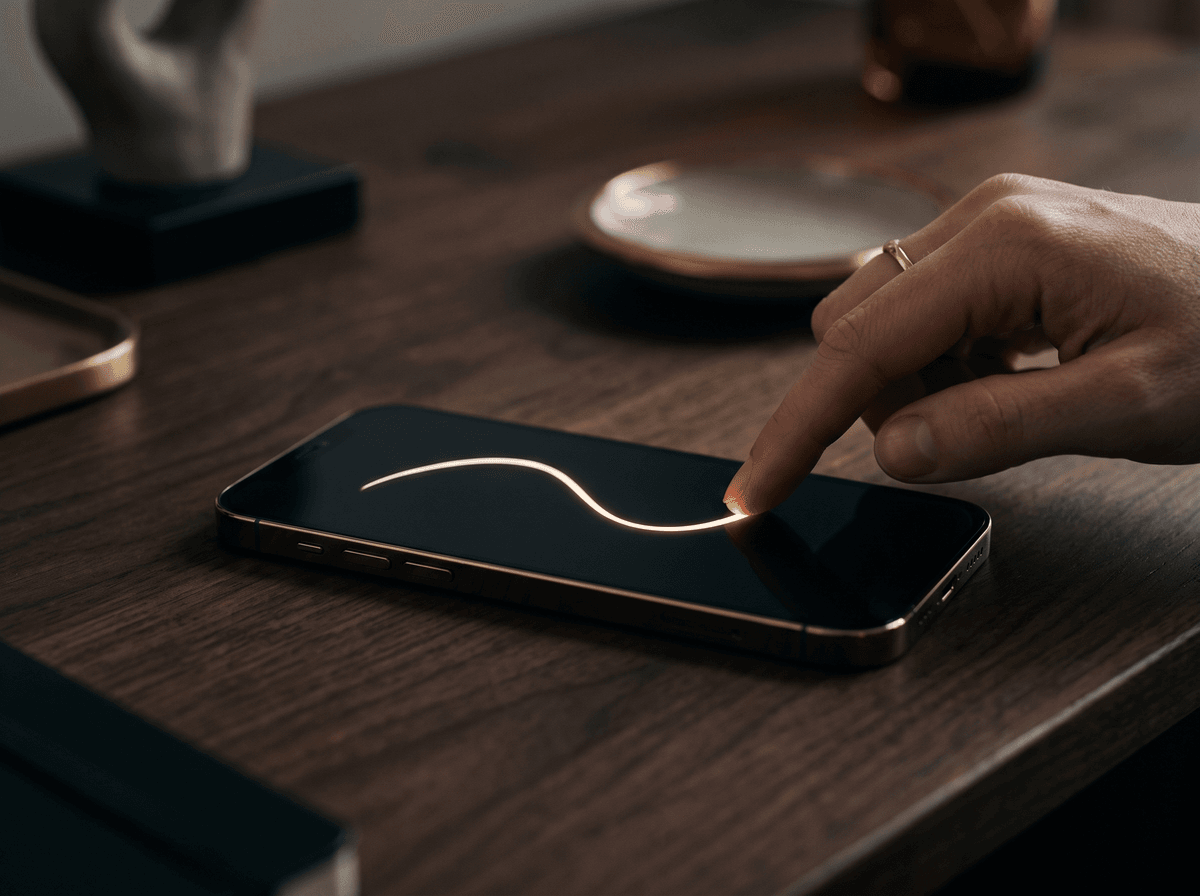
Android doesn't have one built-in PDF signing tool that works the same on every phone, so the most reliable route is a PDF reader app. Adobe Acrobat Reader is available for Android and iPhone, and its Fill & Sign feature lets you sign a PDF. Download it only from the official app store, and check that the publisher is Adobe.
- 1Open the PDF in Acrobat Reader. Open it from inside the app, or tap the PDF in your file manager and choose Acrobat Reader.
- 2Find the Fill & Sign tool. It's usually behind a pencil or edit icon, or in the list of tools.
- 3Tap the signature icon. It usually shows a pen nib. Choose to create a signature.
- 4Sign with your finger and save it. Sign in the box, then tap Done or Save.
- 5Tap where the signature should go. It appears on the document. Drag it into place and resize it by the corner.
- 6Save and share. The app usually saves the change automatically. Use the share button to send it on.
Acrobat Reader rearranges its menus from time to time, and some features may ask you to sign in. If a button isn't where we've described, look for Fill & Sign among the tools; the order of the steps stays the same.
Making a finger-drawn signature look good
On glass, with a finger, a line behaves differently from paper: there's no friction to steady it, and your hand hides what you're writing. A few small things make a big difference.
- Turn your phone sideways. In many apps the signing area gets wider in landscape, leaving more room for movement.
- Sign bigger than on paper. The app shrinks the signature when it places it on the document. A bigger movement gives a smoother line.
- Keep your usual pace. If you draw it slowly and carefully, the line turns shaky and angular. Sign in one go, as you would on paper.
- Use a stylus if you have one. Even a basic stylus brings you much closer to the movement you make on paper.
- Don't patch it. If it didn't work, clear it and sign again in one go. A patched signature shows at once.

If your signature is built from lots of small loops and flourishes, it's worth developing a slightly simpler screen version that keeps the capital and the ending. We describe how in signing on screens.
Placement: on the line, at a natural size
On a phone the document is small, so it's easy to get the position and size of the signature wrong. Before you finish, zoom in, then zoom back out, and check it in both views.
- Sit it on the signature line. The bottom of the signature should touch the line or overlap it slightly, as on paper.
- Make it pen-sized. It shouldn't fill the whole page or shrink to a speck in the box.
- Don't stretch it. Resize from the corners so the proportions stay right.
- Everywhere it's needed. Page through the document; if signatures or initials are needed on several pages, add them to each.
- Name and date if asked. Most tools also have a text option, so you can type your name and the date into the fields.

If a document asks for initials at the bottom of each page, a smaller, simpler mark may do instead of your full signature. We cover short signatures and initials in a separate piece.
Save, check, send
A signature is finished when it reaches the recipient looking the way you see it. Some apps show the signature only in their own view if the file wasn't saved properly. So always check before sending.
- 1Close it and open it again. If the signature is still there after reopening, it's in the file.
- 2Look at it in another app. For example, attach it to an email and check the preview. If it shows there, the recipient will see it too.
- 3Give it a clear name. For example “Tenancy_agreement_signed_Emma_Clarke.pdf”. That makes it easy for both of you to find.
- 4Send it. Use the share button to send it by email or through whatever channel the sender asked for.
- 5Keep a copy. Save the signed version for yourself too, not just in the sent email.
A signature is done when it's there for the recipient, not when it appears on your screen.
Look after your saved signature
The price of convenience is that your phone remembers your signature. Anyone holding your unlocked phone could add it to a document with one tap. That rarely causes trouble, but a few simple habits help a lot.
- Use a screen lock. A passcode, fingerprint or face recognition. This is the most important protection.
- Don't leave it saved on someone else's phone. If you signed on a borrowed or shared device, delete the saved signature from the app afterwards.
- Don't send your signature image around. Keep the saved signature inside the app; don't screenshot it or send it to anyone as a separate picture.
- Protect signed files too. It's easy to crop a signature out of a signed PDF. Send it only to the person it's meant for.

What not to post, how to store signature images and what to do if you suspect misuse are covered in protecting your signature online.
If it doesn't work: the most common problems
- I can't see the Markup or signature icon. You've probably opened it in an email or chat preview. Save the file to your phone and open it from there.
- The signature looks shaky or angular. Sign bigger, in landscape, at your usual pace, and with a stylus if you have one.
- The file can't be edited. Some PDFs are protected against changes. Ask the sender for an editable version, or ask how they'd like you to sign.
- The signature vanished after sending. The file wasn't saved properly. Open it again, check it and resend.
- The app asks me to sign in. Some features may require it. If you'd rather not create an account, the built-in Files app on iPhone works without signing in.
- The file is too large. If the recipient's email bounces it, ask whether there's another way to upload it, such as a shared folder or a form.
When your phone isn't the right tool
Signing on a phone is quick and convenient, but sometimes paper is better. If the sender specifically wants an original signed in ink, if the document has to be shown at an official office, or if it's an important, high-value contract and you don't know whether a drawn signature will be accepted, ask first.

If you do need to print and scan, your phone still helps: many phones can produce a straight, clean PDF of a page with the camera or a document-scanning feature. We go through good scanning and a clean signature image in signing PDFs and e-documents.
The one sentence worth taking away
You can sign a PDF on iPhone with the Markup tool in the Files app, and on iPhone or Android with Fill & Sign in Adobe Acrobat Reader: save the file, make a copy, sign bigger and at your usual pace, place it on the line, check it by reopening, and only then send it.
Questions
How do I sign a PDF on my iPhone?
Save the PDF to the Files app, open it, tap the Markup icon, then the plus button, and choose Add Signature. Sign with your finger, tap Done, drag the signature onto the line, resize it and finish with Done. Menu names can differ slightly between iOS versions.
Does Android have a built-in PDF signing tool?
Not on every phone. Some manufacturers' file viewers or notes apps, and in some versions Google's PDF viewer, offer a pen or annotation tool. The most reliable route is Fill & Sign in Adobe Acrobat Reader, which is available on Android and iPhone.
Will a signature drawn on my phone be accepted?
In many everyday situations, yes, but it's always up to whoever asks for the document. If they want it through a signing service, with a certified e-signature or as an original signed in ink, a drawn signature isn't enough. If you're unsure, ask the sender before signing.
Is it safe for my phone to save my signature?
If your phone has a screen lock and only you use it, generally yes. On a borrowed or shared device, delete the saved signature after signing, and don't send your signature image to anyone separately.
How can I make a finger-drawn signature look better?
Turn the phone sideways, sign bigger than on paper and at your usual pace, in one go. A stylus brings you even closer to your paper movement. If it didn't work, clear it and sign again in one go rather than patching it.
Try it with your own name


Read these too
Knowledge Tools
ToolsPens, ink and paper for a beautiful signature
The same movement looks ceremonial with a fountain pen, crisp with a fineliner and casual with a ballpoint. Here's what each tool does well and how to get the best out of it.
 Basics
What makes a signature look professional?
It isn't the number of flourishes. Flow, a strong capital, a consistent slant, good proportions and a clean finish make a signature confident and repeatable.
 Basics
How legible should your signature be?
Not every letter needs to be readable, but pure chaos isn't the answer either. Here's how to find the balance between legibility and personality.