


Knowledge › Practical
Practical
A handwritten signature in your email: how to add it in Gmail, Outlook and on your phone
Transparent image, the right size, the right version: a step-by-step guide to putting your handwritten signature at the bottom of your emails, and making it look good in dark mode and on phones too.
Most emails end with a name and a phone number in the same font as everything else. A handwritten signature there is a small but noticeable gesture: it makes the message more personal and shows there's a person behind it, not a system. A good handwritten email signature is a small image with a transparent background, with the important details below it as real text. In this guide we cover how to make the image, how big it should be, which version to use, how to add it in Gmail, Outlook, Apple Mail and on your phone, what to watch for in dark mode, and what this kind of signature doesn't replace.
Why put a handwritten signature in your email?
An email signature is mainly information: who wrote this and how to reach them. A handwritten signature adds something a font can't: a personal touch. For someone starting their career, a freelancer, a teacher or a creator this matters, because the reader feels at a glance that a real person wrote the message.
It isn't right everywhere. Larger companies often require a standard signature, and a personal image doesn't fit. For a quick internal reply it's unnecessary. A handwritten signature works best where the impression counts: an introduction, a proposal, a thank-you note, messages to clients.

A font shows what you wrote; handwriting shows that you wrote it.
How a good email signature is built
Before setting anything up, decide what goes into the signature. The most common mistake is putting everything into one image: signature, name, phone number, logo. It can look nice, but if the recipient's email app doesn't load images, they see nothing, and they can't copy your phone number.
- Your handwritten signature as an image. A small image with a transparent background; this is the personal part.
- Your name as text. Even if it's readable in the signature. That way it's searchable, copyable and visible when the image isn't.
- Title or role. One short line: “Graphic designer”, “Managing director”, “Maths teacher”.
- Contact details. Phone number, website; your email address is unnecessary, since that's where the message comes from.
- At most one extra. A logo or one social profile link is enough. Anything more feels cluttered.
- Handwriting as an image, everything else as text
- Still readable if the image doesn't load
- Phone number can be copied and tapped
- Works with screen readers
- This is the recommended setup
- Signature, name and details in one graphic
- Nothing shows when images are blocked
- Details can't be copied
- Often too small or too big on phones
- Best avoided
Making the image: transparent background, crisp line
The quality of the image decides whether the signature looks elegant or cheap. A slightly crooked phone photo with a greyish paper background looks amateur rather than personal. The goal is a clean, dark line with no background.
- 1Sign on clean white paper. A plain, unlined sheet and a black or dark blue pen with an even line. A fineliner or gel pen beats a faint ballpoint.
- 2Scan or photograph it straight on. In daylight, without shadows, from directly above. Your phone's document scanner straightens and whitens the page.
- 3Crop it tightly. Leave only the signature, with a thin empty margin around it.
- 4Remove the background. Use an image editor or a background remover to make the paper transparent, and save it as PNG. JPG can't hold a transparent background.
- 5Resize it. Aim for about 150–200 pixels tall; it will display smaller in your email, but this keeps it sharp on high-resolution screens.

Which version should you use?
An email signature is public: every recipient gets it, it can be forwarded and it can end up anywhere. So it's worth thinking about whether to use the same full, official signature you use on contracts and at the bank.
- Short version. A simplified form of your full signature, such as the capital and the start of your surname. Recognisably yours, but not identical to the official one.
- Monogram. Two initials in one sweeping mark. Looks good in small spaces and is very distinctive.
- First name only. Relaxed and friendly; works well in emails to clients and colleagues.
- Your full signature. If you do choose it, use a small, low-resolution image, not the large print-quality file.
Gmail on a computer, step by step
In Gmail in the browser, the signature lives in an editor where you can also insert an image. Menu names can differ slightly depending on your language and version, but the layout is similar.
- 1Open settings. The gear icon at the top right, then “See all settings”.
- 2Find the Signature section. On the “General” tab, scroll down, choose “Create new” and give the signature a name.
- 3Type the text part. Your name, title and contact details, each on its own line.
- 4Insert the image. Click the image icon in the editor toolbar to upload your PNG or pick it from Google Drive.
- 5Set the size. Click the inserted image to see the size options (small, medium, large, original). Small or medium usually works best.
- 6Choose the defaults. Below the signature, choose whether it appears on new emails and replies, then save changes at the bottom of the page.
Outlook: web, new and classic desktop
Several versions of Outlook exist side by side: Outlook on the web, the new Outlook app and classic desktop Outlook. You can create an image signature in all of them; the setting is just in different places.
- 1Web and new Outlook: Settings. The gear icon at the top right, then “Signatures” under “Accounts”.
- 2Create a new signature. Name it, type the text part, then insert your PNG with the editor's image icon.
- 3Resize the image. Drag a corner of the inserted image or use its menu to make it smaller.
- 4Set the defaults. In the same place, choose which signature appears on new messages and on replies and forwards.
- 5Classic desktop Outlook. Here you reach the same editor through “File”, “Options”, “Mail” and the “Signatures” button; insert the PNG with the image icon here too.
Some versions of Outlook store the signature only on that device, others sync it with your account. If you email from more than one computer, check that it appears on each, and set it up there if it doesn't.
Apple Mail, iPhone and Android
On a Mac, you can create a signature in Apple Mail's settings under “Signatures” and simply drag the image into the editor. It's worth ticking the option to match the signature to the message's default font, so the text part stays consistent.
On phones it varies more. The iPhone's built-in Mail app keeps the signature in Settings, under Mail, and it's essentially text only. Most Android email apps also offer a plain text signature. If you want an image signature on your phone too, the most reliable route is an email app that syncs the signature you set up on your computer.
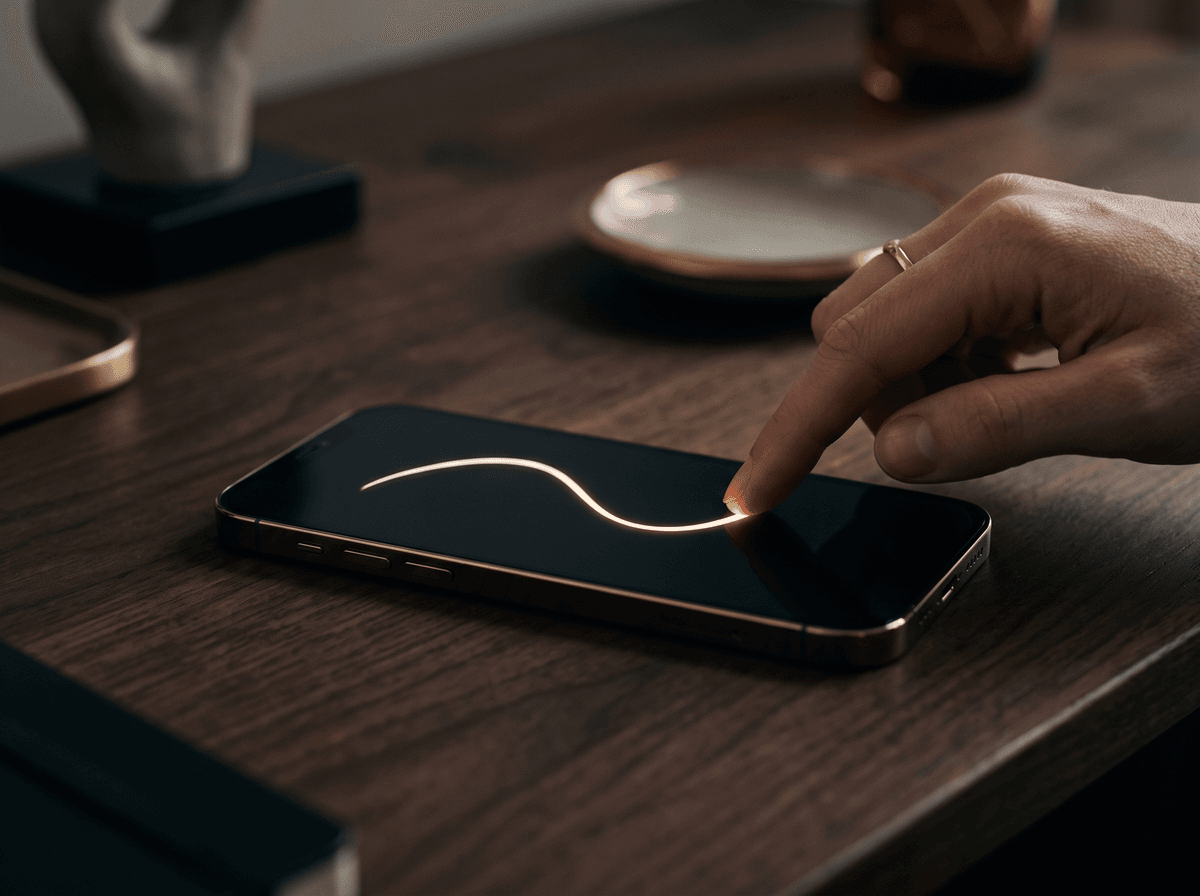
- For replies from your phone, text is enough. Your name and one contact detail are perfectly fine; nobody expects an image at the bottom of a quick reply.
- Don't paste it in by hand every time. Copying the image into each message is fiddly and its size easily gets distorted.
- Check your own email on a phone. Many recipients read on their phones: does your signature look good there too?
Dark mode and blocked images
Two things can make your signature look different for the recipient than for you: dark mode, and the fact that many email apps don't load images by default. It's worth preparing for both.
- Black ink can vanish on a dark background. If the image is transparent and the line is black, it can be almost invisible against a dark-mode background. Dark blue or a slightly lighter ink holds up better on both.
- Some apps recolour the message. In dark mode they adjust text and sometimes images to the background; the result varies by app. That's why you need to test.
- A white-background image is safer but less elegant. If many recipients read in dark mode, a white-background version always shows, but on a dark background it appears as a white rectangle.
- A blocked image leaves a blank or an icon. That's why your name and details must also be there as text. The signature is still complete; only the personal part is missing.
- Give the image a description. If your email app allows it, set your name as the image's alt text. It stays meaningful for screen readers and when images are blocked.

How does it look for the recipient? Test it
In your own email app, your signature almost always looks fine. The real question is whether it does for the recipient too. You can find out in a few minutes and avoid sending an important email with a distorted or invisible signature.
- 1Send yourself a test email. Ideally to an address with another provider: from Gmail to Outlook or iCloud, and the other way round.
- 2Open it on a computer and a phone. Same size, same proportions? It hasn't gone blurry or huge?
- 3Turn on dark mode. Can you still see the line? If not, choose another ink colour or a white background.
- 4Reply and forward. On replies and forwards, some apps treat the image as an attachment or repeat it. If that bothers you, use a text-only signature for replies.
- 5Check it with images blocked. If your app allows, turn off automatic image loading: is it still clear who wrote the message?

Common mistakes
These mistakes come up for almost everyone adding a handwritten signature to their email for the first time. Each is easy to fix.
- Grey or yellowish paper background. The colour of the photographed page shows as a rectangle around the signature. Fix: transparent background, PNG format.
- An image that's too big. A half-screen signature at the bottom of the email. Fix: about two or three lines tall.
- Blurry, pixelated line. A source image that's too small, then enlarged. Fix: a higher-resolution source, scaled down in the email app.
- Everything in one image. Name, phone number and logo in a single graphic. Fix: only the signature is an image; everything else is text.
- Your full official signature in high resolution. Risky and unnecessary. Fix: a short version or a monogram, in a smaller image.
- Untested dark mode. A black line on a black background. Fix: test it, use dark blue ink or a white-background version.
- An image repeated in every reply. Dozens of identical signatures in a long thread. Fix: a short text signature for replies.
A good email signature is like a good handshake: brief, confident, and over before it outstays its welcome.
What an email signature doesn't replace
It's important to be clear: an image of your signature at the bottom of an email is decoration and introduction, not the signing of a document. If you need to sign a contract, a declaration or an official paper, there are separate methods for that, from signing on paper to placing a signature in a PDF to electronic signature services.
What kind of signature is acceptable in a particular situation is decided by the other party, the institution involved and the rules of the country, so for important matters always ask them. We cover signing documents in detail in our article on PDF and electronic signatures.
The easiest route: a ready file from Calligra
If you'd rather not deal with scanning, background removal and resizing, Calligra does it for you. With the Legend package you can download your designed signature as a ready email signature image: transparent background, a crisp high-resolution line, sized for email, for Gmail, Outlook and Apple Mail.
You also get short and monogram versions of your signature, so you don't have to put your full official form into your emails. The transparent PNG and the vector SVG come with it too, for documents and electronic signatures.

If you don't yet have a signature you'd happily put at the bottom of your emails, start with the basics: our guide to creating your own signature walks you through it step by step.
The one sentence worth taking away
A good handwritten email signature is a small PNG image with a transparent background, with your name and contact details below it as real text. Make it from clean paper with a crisp line, display it about two or three lines tall, and use a short version or monogram in emails rather than your full official signature. In Gmail, Outlook and Apple Mail you insert it in the signature editor in settings; on phones it usually stays text only. Send yourself a test email, check it in dark mode, and remember: it's an introduction, not a document signature.
Questions
What format should I save the signature image in?
PNG with a transparent background. JPG can't hold transparency, so the paper colour would show as a rectangle around the signature. SVG stays sharp at any size, but most email apps don't support it reliably in signatures, so PNG is the safe choice here.
How big should the image be?
Make the source file roughly 150–200 pixels tall so it stays sharp on high-resolution screens, and display it at about the height of two or three lines of text. If your email app allows, set the inserted image smaller; a signature that's too big looks showy, one that's too small gets lost.
Is it safe to send my signature around in emails?
Any image you send can be forwarded and saved, so it's worth being careful. Use a short version, a monogram or a lower-resolution image in emails, not the large print-quality file you use on official papers. We cover protecting your signature online in a separate article.
Why can't the recipient see the image?
Many email apps don't load images until the recipient allows it, and some show them as attachments. That's why your name and details should also be there as text. If the image never appears, check that you actually inserted it in the editor rather than linking to it externally.
Can I use the image signature from my phone?
Most mobile email apps only let you set a text signature. If you use an app that syncs the signature set up on your computer, it may appear on emails sent from your phone too. At the bottom of a quick reply, your name and one contact detail are perfectly enough anyway.
Does an email signature replace signing a document?
No. The image at the bottom of an email is an introduction and a personal touch, not the signing of a contract or declaration. What signature is accepted in a given matter is decided by the other party, the institution and the country's rules; for important matters, ask them.
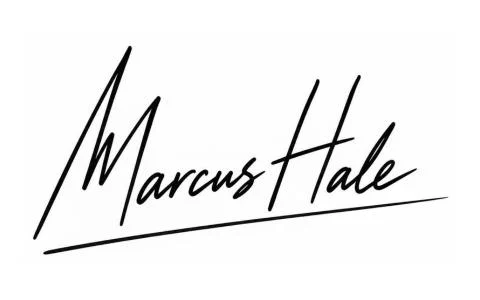
Try it with your own name


Read these too
Knowledge Practical
A new signature after marriage: how to sign your new name
A new name, the same hand. Here's what to keep from your old signature, what to change, when you still sign your old name, and how to have the new form in your hand by the time your new documents arrive.
 Practical
Changing your signature: when, where and how
You can adopt a new signature at any time, but how you roll it out matters. Here's where your signature is on file, what to ask, and how to get through the awkward first weeks.
 Practical
Signing on screens: tablets, phones, terminals
At the door with a courier, at the bank, at a café counter: more and more often we sign on glass with a finger or stylus. Here's how to keep your signature recognisable and good-looking there too.