Knowledge › Practical
Practical
Signing on screens: tablets, phones, terminals
At the door with a courier, at the bank, at a café counter: more and more often we sign on glass with a finger or stylus. Here's how to keep your signature recognisable and good-looking there too.
On paper, your signature has had years to settle in: you know how big it is, where it starts, how it trails off at the end. Then a courier hands you a small device, and that familiar movement turns into a shaky, squashed scribble. A screen is a completely different surface from paper: the friction is different, the space is different, and the device lags a fraction of a second behind your hand. Below: why screen signatures look the way they do, how to build a simplified “screen version” of yours, what works on each device, and how a drawn signature differs from a certified electronic one. No legal advice, just enough to know what to ask.
Why screen signatures look different
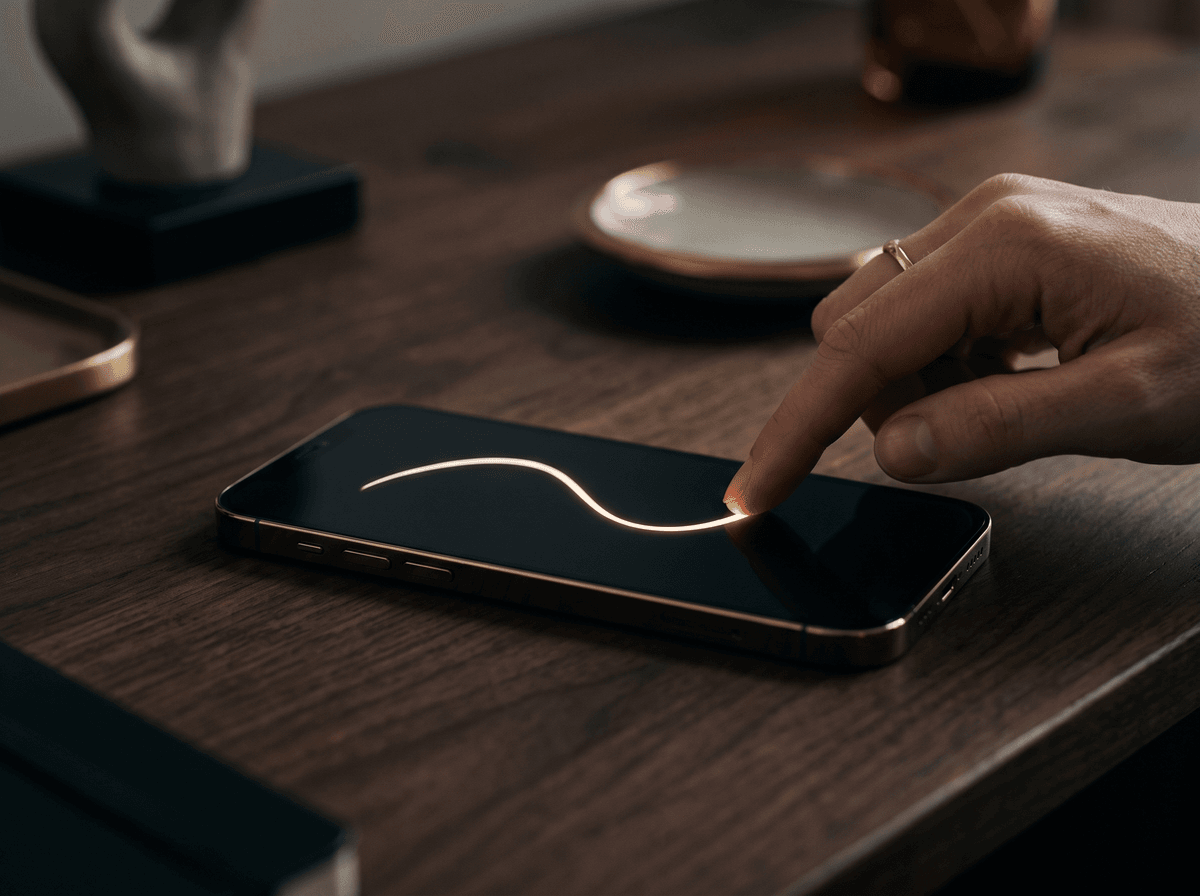
When you sign on paper with a pen, your hand gets a stream of tiny signals. The paper fibres drag on the tip, the ink pulls slightly, and your fingers feel how hard you're pressing. On glass, most of it disappears.
- No friction. A fingertip or plastic tip glides almost without resistance. Your movement speeds up, curves widen, and small loops simply vanish.
- Very little space. The signature box on a card terminal or courier device is often barely bigger than a matchbox. A long, wide signature either runs off the edge or gets crushed.
- The line lags. Most devices draw what you write a hair after you write it. If your eyes chase the line, your hand slows down or hesitates, and that's where the wobble comes from.
- Uniform thickness. Most signature pads ignore pressure, so the natural swell and taper of a pen stroke is gone. The shape has to do all the work.
Where you'll meet screen signatures
Each place you sign on glass has its own traps.
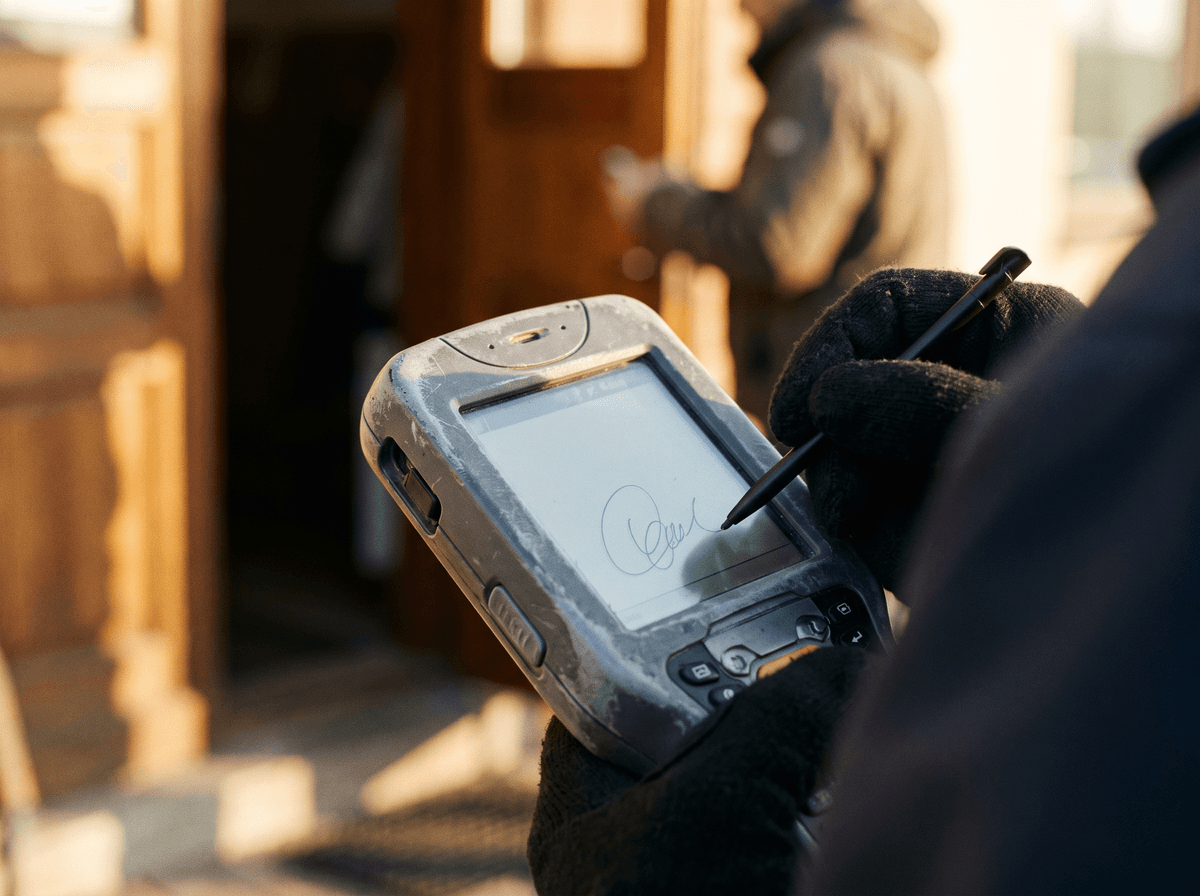
- Courier devices. A handheld unit, a tiny box, often a plastic stylus or nothing at all. You're standing, rushing, and holding a parcel in your other hand.
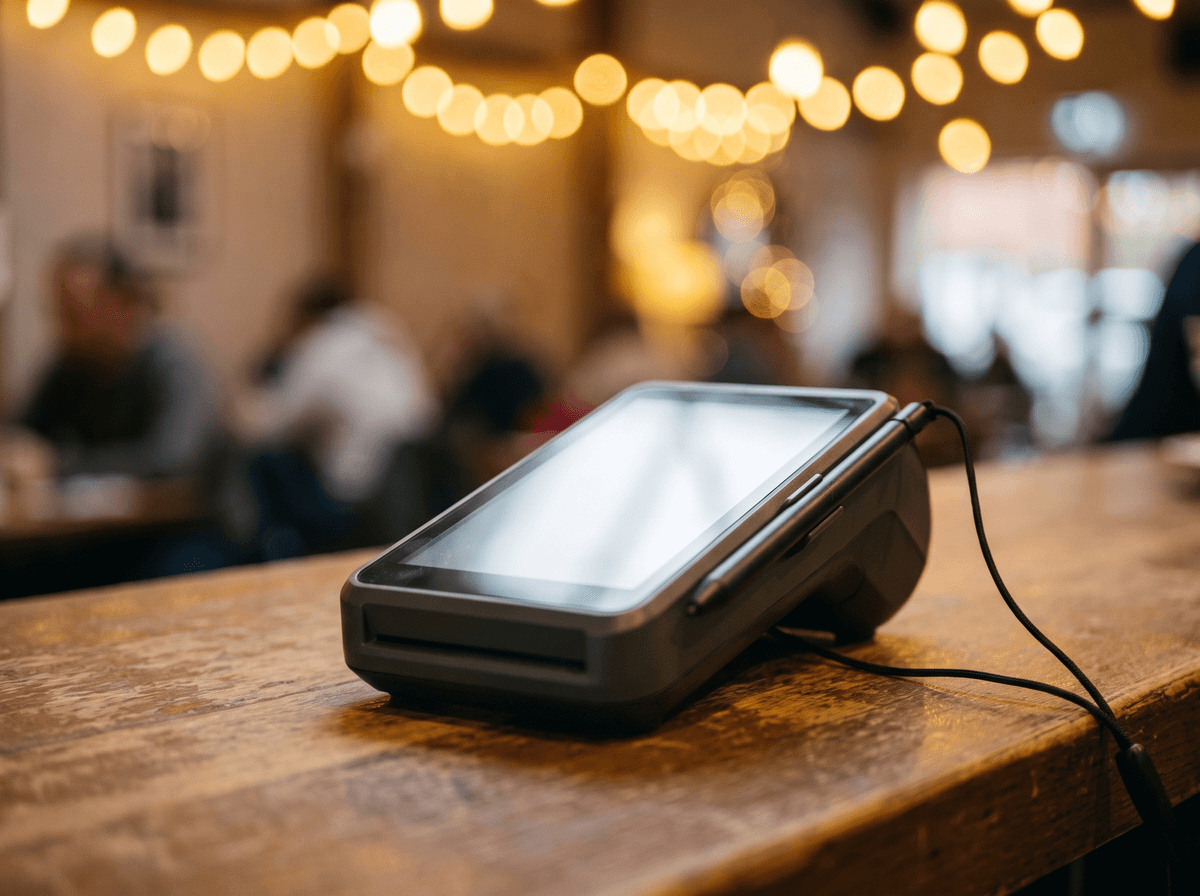
- Card terminals. Signatures are less common now, but when you do need one, it's at a counter, in front of people, on a small surface, sometimes with a tethered pen.
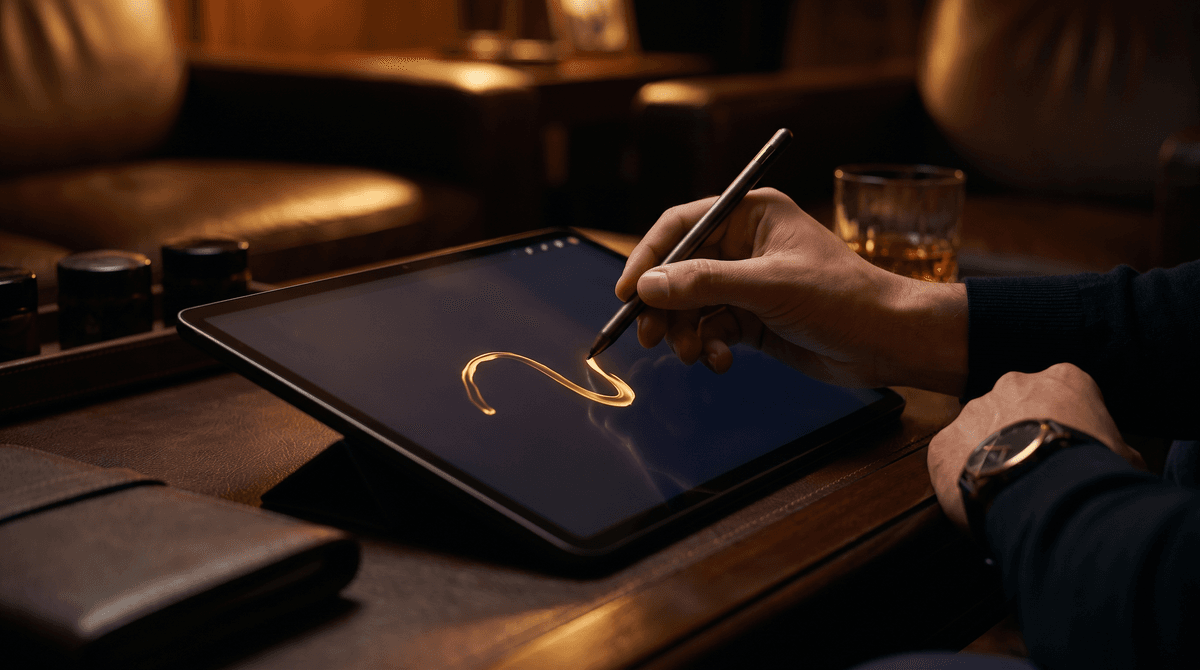
- Tablets. At banks, clinics, hotel receptions, car rental desks. A bigger surface, but often you're expected to use your finger.
- Phones. In document-signing apps, for rental agreements, school permission slips. Frequently on the move, holding the phone in one hand.
- Kiosks. In public offices, at parcel lockers, at check-in desks. Vertical or angled screens, standing up, often at an awkward height.
Finger or stylus?
Often you don't get a choice: if there's no stylus, you use your finger. But when you can choose, it's worth knowing what each one gives you and what it takes away.
- Always with you, nothing to look for.
- A broad, imprecise contact point, so fine details get lost.
- Your hand can't rest, so the movement comes from the shoulder.
- Works well with large, simple shapes.
- Closer to your usual pen grip.
- A more precise tip, so curves show up better.
- Your palm can often rest on the screen, if the device handles it.
- A soft rubber tip can drag or judder.
When you sign with a finger, make your index finger the “nib” and curl the others in as if you were holding a pen. That way the movement comes from the wrist and forearm rather than a single knuckle, and the line becomes much steadier.
Your screen version: simplifying on purpose
Most people instinctively simplify their signature on a screen, just differently every time. One day the second loop goes missing, the next day the initial shrinks. It's far better to decide in advance what stays, and practise exactly that. That becomes your screen version.
- 1Find the backbone. Sign ten times on paper and look at what never changes. Usually it's the initial, one or two distinctive letters and the finish. That's your backbone.
- 2Drop the small stuff. Dots, tiny loops and thin flourishes get swallowed by the screen anyway. If a detail only works with ink and friction, let it go.
- 3Compress horizontally. Imagine your signature has to fit on the short side of a business card. Tighten the spacing between letters, but keep the height.
- 4Keep the finish. The ending stroke gives your signature its final energy and much of its recognisability. Shorter is fine, but keep it. Our article on finishing strokes covers several options.
- 5Repeat ten times in a row. If eight out of ten attempts look roughly alike, you've found your screen version. If not, simplify a bit more.
An example: on paper, Anna Kovács starts with a large looped K, writes out “ovács”, then adds a smaller A and a long stroke that curls back on itself. Her screen version is the large K, a single wave where “ovács” used to be, the small A, and a shorter, straight exit. Anyone who knows her paper signature recognises it instantly.
Your screen version isn't a different signature. It's the same movement, condensed.
With couriers and card terminals
The hardest two: a small box, a hurry, someone waiting. Speed and consistency beat beauty here.
- Look at the box before you start. Know your room before the first stroke.
- Start on the left, slightly low. Most signatures run to the right and climb as they go. Start in the middle and your finish won't fit.
- Sign in one go. Don't stop halfway to check how it's looking. A hesitation does more damage than a slightly imperfect letter.
- Don't fix it. Unless asked, don't restart; touching it up looks less certain.
- Brace your hand if you can. Ask the courier to hold the device, or set it on a steady surface. At a card terminal, the edge of the counter makes a great rest for your little finger.
On tablets and graphics tablets
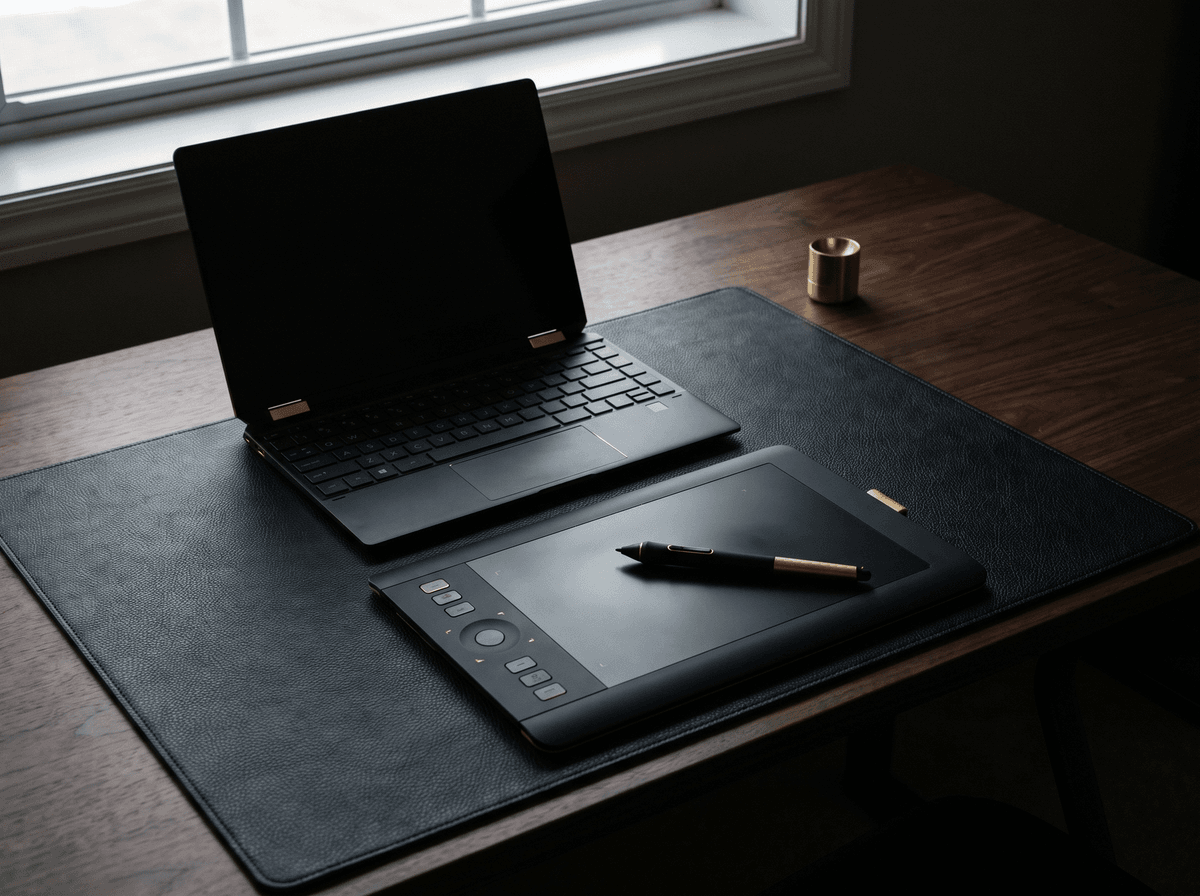
A tablet gives you more space, and you're often seated. On a graphics tablet linked to a laptop, you can get very close to your paper signature.
- Lay it flat. Where possible, don't sign with the tablet held in mid-air. Flat on a desk, it's stable and your hand can rest.
- Set the angle. Rotate the tablet the way you'd angle a sheet of paper.
- Mind your palm. Some apps ignore your palm while you use a stylus; others don't. If stray marks appear, lift the edge of your hand slightly.
- On a graphics tablet, don't watch the tablet. The line appears on your monitor, not under the pen. Practise a few first.
Don't feel you must fill a large box. Keep roughly your paper size, or the proportions drift.
On phones and kiosks
- 1Turn the phone sideways. Many signing apps offer landscape mode, and some switch automatically. In landscape the box is wider and your stroke has somewhere to go.
- 2Put it down. Signing with your thumb on a phone held in one hand is the hardest version of all. Set it on a table so your index finger and wrist can do the work.
- 3At a kiosk, step closer. With a vertical screen, we tend to sign with an outstretched arm. Stand so your elbow is relaxed and slightly bent.
- 4Sign below shoulder height. If the box sits too high, the weight of your arm drags the signature downhill. Where you can, use the lower part of the box.

Peter Nagy has a routine for kiosks: he steps in a little closer, rests his left hand on the frame, and only then starts writing. It stops his signature sliding downhill.
Common mistakes and how to fix them
- A shaky, zigzag line. Usually caused by writing too slowly and watching the lagging line. Speed up a little, and look at where you're heading rather than at the end of the stroke.
- A crushed right-hand side. You started too far in. Begin at the left edge of the box and consciously leave room for the finish.
- A signature that slopes downhill. The device is at the wrong angle or your arm is stretched out. Rotate the device, or step closer.
- A broken line. Your finger or stylus may be touching too lightly, or the glass is dirty. Press a little more firmly, and wipe the surface if you can.
- A sudden dot or blob. Your palm or another finger brushed the screen. Keep your other fingers curled and lift the edge of your hand.
- Different every time. You haven't settled on a screen version yet. Go back to the simplification steps and practise one.
Keeping paper and screen consistent
People often ask whether it's a problem if their screen signature differs from their paper one. They'll never match exactly, and that's fine. What matters is that both come from the same movement: the same initial, the same overall direction, the same slant and the same kind of finish.
- The shape of your initial.
- The direction of the slant.
- The proportions: height relative to width.
- The type of finish, such as a straight line or a curling arc.
- Line thickness.
- How detailed the middle letters are.
- Small flourishes, dots and accents.
- Overall width, when the box is small.
Try this: sign three times on paper, then three times on a phone or tablet, and put them side by side. If the screen versions are recognisable on their own and you can see the “skeleton” of the paper one in them, you're on the right track.
If you're still shaping your signature, it pays to design it from the start to work on screens too. Our article on a professional signature goes into what makes a shape both elegant and easy to repeat. In Calligra's practice mode you write on a screen and get a score for each attempt.
Special cases: left-handers, long names, accents
- Left-handers. Smudging isn't an issue on glass, but your hand can hide what you've already written. Rotate the device slightly clockwise so your hand travels below the line rather than over it.
- Long names. A name like Krisztina Szentgyörgyvölgyi will never fit in full on a small screen. Here the initials and a distinctive wave carry the signature. Our article on initials helps you make that first letter strong enough to bear the weight.
- Double-barrelled names. For someone like Eszter Kovács-Nagy, decide which name gets the emphasis. On screen, the second name often simplifies into a single arc.
- Accents. The double strokes of ő and ű, or the accents on í and é, are tiny separate movements that devices often turn into dots or blobs. If an accent matters in your signature, make it one short, slanted dash.
- Very short names. A name like Ed Tóth or Ili Kiss has few letters and can look insignificant in a small box. A larger, more assertive initial and a longer finish give it presence.
- A shaky hand. If your hand trembles for health reasons, writing a little faster with more momentum and bracing your hand firmly usually helps most. Choose a simpler shape with fewer sharp changes of direction.
Drawn signature or certified electronic signature?
This is worth getting clear, because the two are often confused. When you sign on a display with a finger or stylus, you create a drawn signature: an image of your movement, sometimes stored together with data about how you moved. A certified electronic signature is something else: a technical process that links a signed document to an identified person; it has nothing to do with how your handwriting looks.
- Made with a finger or stylus on a screen.
- An image of your handwriting, perhaps with movement data.
- Standard with couriers, at terminals and in many signing apps.
- What it's sufficient for depends on the provider and the situation.
- Based on a certificate and identity verification.
- Not a picture of your handwriting but a technical proof.
- May be required for official matters or certain contracts.
- The rules differ between countries and providers.
A one-week practice plan for screens
Five to ten attentive minutes a day is plenty. Our article on practising has more ideas for building a routine.
- 1Days 1–2: the backbone. Sign ten times on paper and mark what always stays the same. From that, sketch out your screen version.
- 2Day 3: finger, large. In a notes or drawing app, sign ten times with your finger, large. Focus only on rhythm.
- 3Day 4: small. Draw a small rectangle, roughly the size of a card terminal's box, and sign inside it. Start on the left and leave room for the finish.
- 4Day 5: stylus. If you have a stylus, repeat with it.
- 5Day 6: standing. Hold your phone or tablet upright as if it were a kiosk and sign that way.
- 6Day 7: compare. Put your paper and screen attempts side by side. If a stranger would assume they came from the same person, you're done.
You don't have to bend to the screen. You need a shape the screen can't spoil.
The one sentence worth taking away
Screens have no friction, very little space and a lagging line, so your usual signature can easily fall apart on them. Build a deliberately simplified screen version that keeps your initial, slant and finish, and practise it with both finger and stylus. Before you sign, look at the box, start on the left and sign in one movement. For anything official, ask the institution what kind of signature it accepts.
Questions
Is it a problem if my screen signature doesn't match my paper one exactly?
No. They'll never match exactly, because the surfaces are too different. What matters is that both come from the same movement: the same initial, slant, proportions and finish.
Why does my line wobble when I sign on a screen?
Most often because you're writing too slowly and your eyes are following the line, which appears a fraction late. Your hand hesitates, and the device records that as tiny zigzags. Write a little faster, in one movement, and look at where you're heading rather than at the end of the line.
Should I sign with my finger or a stylus?
A stylus usually gives a more precise line, because it's closer to your normal pen grip. With a finger, make your index finger the nib, curl the rest in and let the movement come from your wrist. Ideally, practise your screen version with both.
What if my signature doesn't fit in the box?
Start at the left edge, slightly low, and compress the middle letters horizontally while keeping the height. If needed, turn the middle into a single wave.
Is a signature drawn on a screen the same as an electronic signature?
Not necessarily. A drawn signature is an image of your handwriting, sometimes with movement data. A certified electronic signature is a technical process based on a certificate and identity verification. Which one a matter needs is for the institution or provider to say, and rules differ between countries. For anything official, ask.
How can I practise signing on screens?
Any notes or drawing app will do: sign ten times large, then ten times inside a small, terminal-sized rectangle, with finger and stylus. The one-week plan above gives you a structure.
I'm left-handed. What should I watch out for on screens?
Mainly that your hand doesn't cover what you've already written, and that your palm doesn't touch the display. Rotate the device slightly clockwise so your hand moves below the line, and if you're using a stylus, lift the edge of your hand a little.
Try it with your own name
Read these too
Knowledge Practical
Changing your signature: when, where and how
You can adopt a new signature at any time, but how you roll it out matters. Here's where your signature is on file, what to ask, and how to get through the awkward first weeks.
 Practical
Signing PDFs and e-documents: what to watch for
Print, sign and scan? Paste in an image? Or are they asking for an e-signature? Here are your options, how to make a clean signature image, and how to keep your digital signature safe.
 Practical
Initials, monograms, short signatures: when is the short form enough?
In the corner of a page, on internal paperwork, in a cramped box, a quick short mark comes in handy. Here's where it's usually accepted, where your full signature is more likely expected, and how to keep the short form unmistakably yours.