
Knowledge › Practical
Practical
Signing PDFs and e-documents: what to watch for
Print, sign and scan? Paste in an image? Or are they asking for an e-signature? Here are your options, how to make a clean signature image, and how to keep your digital signature safe.
A rental agreement arrives by email, an application form has to go back as a PDF, a workplace declaration needs to be “signed” on an online platform. More and more of our signatures happen with paper appearing only briefly, or not at all. That leaves many people unsure: is pasting in an image enough? How sharp should it be? Is it safe to keep my signature on my computer? The most important thing is to know which kind of “electronic signature” you're dealing with, because an image, a scanned page and a certificate-based e-signature are three completely different things. In this article we go through the options, show you how to make a clean scan and signature image, how to place it on a document, what to watch for in terms of security, and when an image isn't enough.
Four kinds of “digital” signature you'll meet
In everyday speech, any signature that somehow ends up in a file gets called “electronic” or “digital”. In reality there are at least four different approaches, and each is good for different things.
- Printed, signed, scanned. A digital copy of your handwritten signature on paper. The ink is real, but the file is just an image of the signed page.
- A pasted signature image. You place a previously made image on the PDF. Quick and convenient, but anyone who receives the file can easily copy it.
- Signing in an online signing service. You draw or type your name on a website or app. The provider usually logs who signed, when and from which email address.
- A certificate-based e-signature. A technical process that links the document to an identified person and also shows if it was changed after signing. It has nothing to do with what your handwriting looks like.
We've written a separate article about signatures drawn on screens, for example for couriers or at card terminals: signing on screens. Here the focus is on documents, PDFs and papers sent by email.
What's enough for what? Ask first
Which option is acceptable in a given case isn't up to your preference; it depends on who's asking for the document and which rules apply. These vary by country, institution and type of matter. What's perfectly fine for an agreement between friends may not be enough for an official matter.
- 1Ask what form they want. Is a scanned, signed copy enough? Do they accept a pasted signature image? Or does it have to be signed through a particular signing service?
- 2Ask whether they need the original. Sometimes they want the hand-signed copy by post as well as the scan.
- 3Ask about the deadline and format. Do they want a PDF, or is a photo fine? All pages in one file?
- 4Write down the answer. A short note in the email or your calendar helps a lot when the same place asks you for something again.
Print, sign, scan: doing it properly
Even when the paper route is the safe one, how you do it matters. A blurry, shadowy, crooked photo can easily come back as unreadable, and then you're starting over.
- 1Print cleanly. On plain white paper, ideally at original size without scaling down. Check that every page is there.
- 2Sign in dark ink. Black or dark blue ballpoint, fineliner or fountain pen. Light, metallic or coloured inks often come out faint when scanned.
- 3Let it dry. A few seconds is enough, but with a fountain pen wait a little longer before turning the page or putting it on the scanner.
- 4Scan rather than just photograph. If you have a scanner, use it. Around 300 dpi is usually plenty for documents. On a phone, a scanning app is better than the plain camera, because it straightens and crops the page.
- 5Save as one PDF. Pages in order, in one document, with a meaningful file name. Before sending, open it and scroll through.

Making a clean signature image
If you often have to sign PDFs and the recipient accepts a pasted image, a good-quality signature image can be handy. It's worth making it once, carefully, because a hastily photographed image with a grey background looks poor on a document too.
- 1Sign several times on white paper. With a fineliner or dark ballpoint, a little larger than usual, calmly. Write five or six signatures and pick the one that's most like your everyday signature.
- 2Scan or photograph it carefully. Even light, no shadows, in sharp focus.
- 3Crop it tightly. Leave a small margin around it, but not the whole page.
- 4Clean up the background. Many image editors and PDF readers let you make the white background transparent. A PNG with a transparent background sits naturally on the line, without a white rectangle around it.
- 5Check it zoomed in. Look at the image large: no specks, grey edges or crooked lines.
Dora Clarke photographed her first signature image on the kitchen table under an evening lamp. The background came out yellowish, and on the document a grey rectangle showed around the signature. The next day she remade it in daylight with a fineliner and a transparent background, and she's used the same one ever since. One calm quarter of an hour that has paid her back many times over.
A signature image only needs to be made well once, and then it serves you for a long time.
Placing it on the document
Many PDF readers have a “fill and sign” style feature that lets you add a saved signature image, or a signature drawn with a mouse or finger, to a document. Whichever you use, a few small things make a big difference to the result.
- Put it on the line. The bottom of the signature should sit on the signature line, or overlap it slightly, as on paper. It shouldn't float above it.
- Keep the size in proportion. No bigger than the signature box, and not lost in it either. Roughly the size it would be if you'd written it there with a pen.
- Don't distort it. When resizing, make sure the image keeps its proportions. A signature stretched sideways or squashed instantly looks artificial.
- Everywhere it's needed. Some documents need a signature or initials on several pages. Scroll through before sending.
- Date and name, if required. If the document asks for it, add the date and your printed name, typed into the fields.
Mouse, trackpad, stylus: when you have to draw on a computer
Some signing platforms ask you to draw your signature on the spot. With a mouse or laptop trackpad this is often hard: the movement is jerky, the line angular, and the result barely resembles what you write on paper.
- Switch devices if you can. Many services let you open the same document on a phone or tablet, where a finger or stylus feels far more natural.
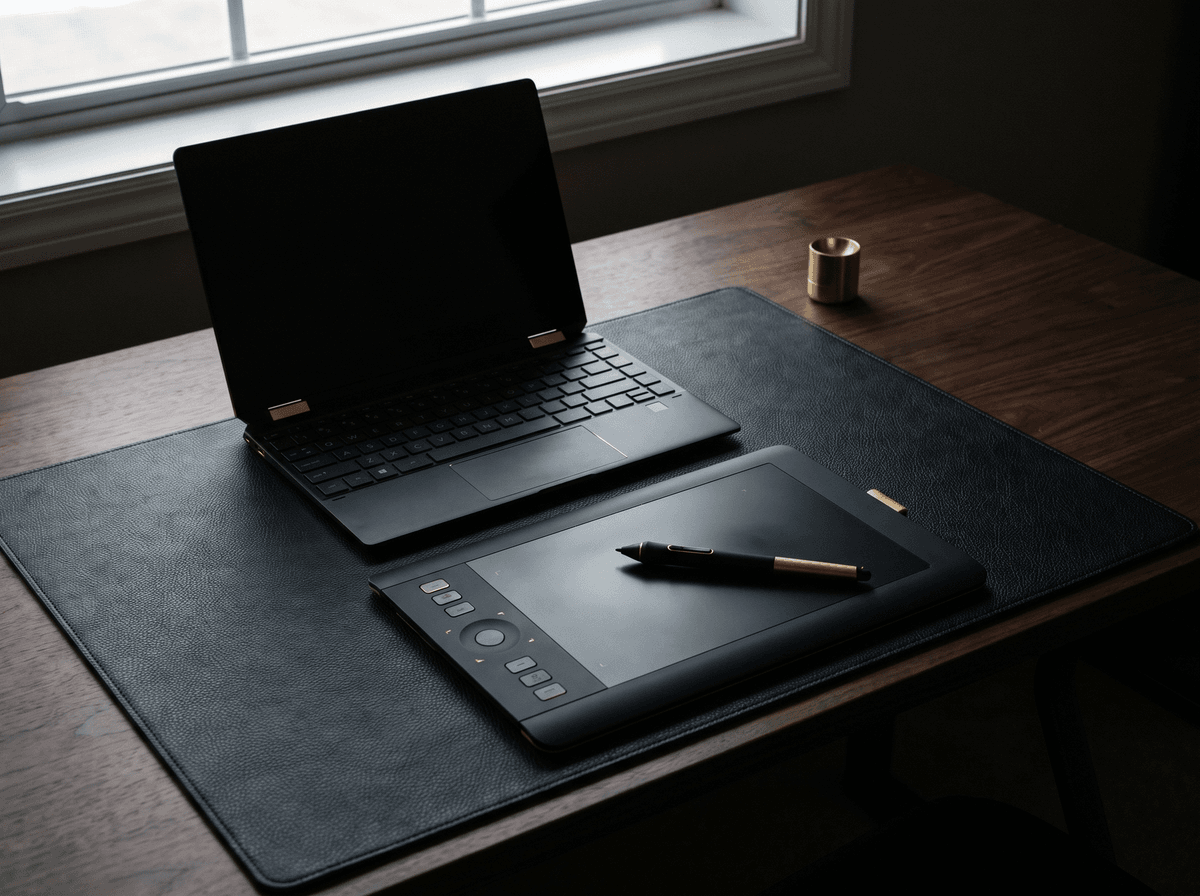
- Use a graphics tablet if you have one. With a drawing tablet and pen, the line can come very close to your paper signature.
- Simplify on purpose. With a mouse, write a cleaner version with fewer loops, but keep the main features: the capital and the finish.
- Don't patch it. If it didn't work, clear it and write it again in one movement. A patched-up signature shows.
We cover the finer points of screen signatures, designing a simplified version and a one-week practice plan in detail in signing on screens.
Look after your signature image
Writing a signature by hand takes time and movement. A signature image, though, is a file that anyone with access can reuse in a few clicks. So it's worth treating it like an important document.
- Store it somewhere secure. Not on your desktop, not in a shared folder, but on a password-protected device or account.
- Don't send it as a separate file. If someone asks for an image of your signature on its own, ask what it's for. A signed document is different from a signature image that can be used freely.
- Don't upload it just anywhere. Free online tools, unknown “PDF signer” sites: if you don't know who runs them and what they do with your files, look for something else.
- Don't make it public. No image of your real signature on social media, in your CV or in your email signature.
- Only sign the final version. If a document may still change, wait for the final copy. Keep a copy of the signed PDF.

When an image isn't enough
There are situations where a pasted image isn't accepted, and it helps to know in advance when to expect that. Exactly which cases those are varies by country and matter, so always ask the place concerned.
- Internal workplace declarations.
- Simple application and consent forms.
- Confirmations and receipts.
- Smaller agreements between people you know.
- Certain official and government matters.
- Property and loan paperwork.
- Documents needing a notary or certification.
- Wherever the rules call for an original or certificate-based signature.
If an image isn't enough, there are usually two routes: the original hand-signed paper, in person or by post, or a certificate-based e-signature made through a dedicated service. Which one is needed, and which providers are accepted, is something the institution concerned can tell you.
Certificate-based e-signatures in brief
Many people confuse certificate-based e-signatures with pasted images, because a small signature-like mark or a framed box often appears on the document in the same way. But what counts isn't that visible image; it's the technical proof behind it.
- It's based on identification. You usually have to verify your identity with the provider before signing.
- It protects the document. If someone changes the file after signing, PDF readers typically show that the signature is no longer valid for the new content.
- It can be checked. In many PDF readers you can click a signature or open a signature panel to see who signed, when, and whether it's valid.
- It doesn't depend on your handwriting. The visible appearance may be your name, an image of your signature or a simple box. That's not what makes it authentic.
Which types exist in a given country, who can issue them and which level is needed for which matter all vary. If you're asked for one, the requesting institution will usually tell you which providers or procedures it accepts.
What makes a certificate-based e-signature authentic isn't the visible image but the proof behind it.
Consistency: the same on paper and on screen
Whatever form you sign in, it's good if your digital signature comes from the same movement as your paper one. If the two ever need to be compared, it's much better if they're recognisably the same.
- Keep your signature image current. If your signature has changed over the years, make a new image. One from ten years ago may no longer look like your current one.
- Replace it after a change. If you adopt a new signature, delete the old image and make a new one once your hand writes the new form reliably. We cover the steps in changing your signature.
- Don't have two separate signatures. A beautiful, ornate image on PDFs and a completely different scribble on paper can cause confusion. Better one well-practised form everywhere.
Gabriel Hughes designed his new signature in Calligra and practised it for three weeks before using it anywhere. He only made his signature image at the end of the third week, when ten out of ten attempts came out the same. As a result, his PDFs carry exactly the same signature as the papers he signs in person.
When several people sign the same document
A rental agreement, a joint declaration or a club's minutes are often signed by several people, and it's easy to lose track of who signed which version. A few simple rules prevent a lot of frustration.
- 1Agree on the final text. Nobody signs until everyone has seen and approved the final version. After even a small change, every signature would need collecting again.
- 2Decide the order. The first signer passes the signed file to the next, and so on. Don't each sign a separate copy unless that's what's been asked for.
- 3Don't rescan each other's signatures. Every rescan or re-photograph lowers the quality. If possible, everyone adds their signature to the same PDF.
- 4Name the files clearly. For example with the date and who has signed so far. That makes the latest, complete version easy to find.
- 5Everyone gets a copy at the end. The last signer sends round the finished document with all the signatures.
If you use an online signing service, these steps often happen automatically: the service notifies signers in turn and sends everyone the finished document at the end. Whether that's acceptable for the matter in question is, again, worth asking in advance.
A checklist before you send
Before sending a signed document, take a minute and run through this list. It can save you a lot of returned paperwork and follow-up emails.
- 1Did you sign the right way? Did you use the form they asked for: a scanned page, an image or a signing service?
- 2Are all the pages there? In order, in one file, none upside down or cut off.
- 3Is every signature in place? In every box that needs a signature, initials or a date.
- 4Is it legible? Sharp even when zoomed in, no shadows, text and signature clearly visible.
- 5Are you sending it securely? To the address given, through the platform given, not to a recipient picked by accident.
- 6Did you keep a copy? Save the version you sent for yourself too, with a meaningful file name.
The one sentence worth taking away
First find out what kind of signature they want, then do it properly: dark ink, a clean scan, sensible placement, and treat your signature image like a key.
Questions
Is it valid if I paste an image in place of my signature?
That depends on who's asking for the document, what it's for and which rules apply. Many simple, internal or private matters accept it, while certain official matters require an original paper or a certificate-based e-signature. These vary by country and institution, so always ask in advance.
What's the difference between a pasted image and an electronic signature?
A pasted image is just a picture of your handwriting on the document, which anyone can copy. A certificate-based e-signature is a technical process that links the document to an identified person and shows if it was changed afterwards. The two can look similar on the page, but they do very different things.
What resolution should I scan at?
Around 300 dpi is usually plenty for documents. Much higher rarely makes sense to send, and much lower can look blurry. If the recipient specifies a format or size limit, follow that.
Is it safe to keep my signature image on my computer?
Keeping it on a password-protected device, in a folder that isn't shared, and only sending it inside signed documents where it's really needed is a sensible approach. Don't keep it in public or shared folders, don't upload it to unknown online tools, and don't send it as a standalone file if you don't know exactly what it will be used for.
I can't sign nicely with a mouse. What can I do?
If possible, open the document on a phone or tablet and sign with a finger or stylus. If you must use a mouse, write a simplified version that keeps your capital and finish. If the platform allows it, you can upload a carefully made signature image instead.
What colour ink should I use if I'm going to scan it?
Black or dark blue. They show up well when scanned and photocopied. Light, coloured or glittery inks often come out faint or patchy in the scan.
I'm learning a new signature. When should I make the signature image?
Once your hand writes the new form reliably and consistently. If you make it too early, the image captures an unsettled version that may later differ from the signature you write on paper. A good sign is when ten out of ten attempts are recognisably the same.
Try it with your own name
Read these too
Knowledge Practical
Changing your signature: when, where and how
You can adopt a new signature at any time, but how you roll it out matters. Here's where your signature is on file, what to ask, and how to get through the awkward first weeks.
 Practical
Signing on screens: tablets, phones, terminals
At the door with a courier, at the bank, at a café counter: more and more often we sign on glass with a finger or stylus. Here's how to keep your signature recognisable and good-looking there too.
 Practical
Initials, monograms, short signatures: when is the short form enough?
In the corner of a page, on internal paperwork, in a cramped box, a quick short mark comes in handy. Here's where it's usually accepted, where your full signature is more likely expected, and how to keep the short form unmistakably yours.